
CI Pipeline To Control Versions to Productions

Blogs, LabVIEW Blog
Embracing Continuous Integration for LabVIEW TestStand Projects After months of advocating for improved control and audit readiness in our software releases, our proposal to introduce a CI pipeline for all production test software (built on the LabVIEW TestStand platform) has been approved! This marks a significant milestone in customer's journey towards more robust, reliable, and compliant software development practices. The need for a CI pipeline became evident through various challenges we encountered with manual processes and fragmented workflows. To illustrate the CI pipeline, the process begins with developers working on their local machines, setting the local experimental builds v0.0.0 to clearly distinguish it as a development version. Upon committing changes to Bitbucket, the build server pulls these changes and updates the change log with commit messages. The build server then…
Read More

CI CD with TestStand Deployment

Blogs, LabVIEW Blog, Snippets
Lately I have been working a lot with TestStand deployment utility to organize the proper release verisoning of TestStand project. One of the consistent feedback of a customer is that they find hard contorl the various TestStand sequence file and numerous versions and dependencies floating around the manufacturing floor. I suggested them to use TestStand deployment utility and put those up in a CI (Continuous Integration) server so that whenever the test engineer changes the sequence, there will be a package spits out from the server with proper versioning. What I really ended up is helping them to setup and burying myself in the mysteries of TestStand deployment utility unknown areas. First thing I came across is the BuildTSD.exe that helps in command line execution for TestStand Deployment utility. I…
Read More

TestStand Execution Aborts Unexpectedly

Blogs, LabVIEW Blog
TestStand persisted data (like a watch window data) could be a reason behind such aborts or stopping of sequence unexpectedly. In my case, I tried to check function AbortAll() in the watch window and ran into an infinite loop of aborts whenever I try to pause the sequence. To add more trouble, it didn't allow me to delete it as Watch View becomes inaccessible (see greyed out below) after sequence aborts. Watch Window in TestStand is executing unexpected functions of TS-Engine To overcome this issue, the Watch expressions are persisted in the TS common app data can be edited in a simple text editor. Open TeststandPersistedOptions.opt found in below path in a notepad and remove the section as highlighted in following screenshot. C:\ProgramData\National Instruments\TestStand 2021 (32-bit)\Cfg\TeststandPersistedOptions.opt Delete the section which…
Read More

LabVIEW or TestStand File Diff using TortoiseSVN or TortoiseGit

Blogs, LabVIEW Blog
When you're extensively working in LabVIEW or TestStand with multiple developers, you could easily end up in the need of merging different VIs or sequences. The LVCompare tool and TestStand File Diff and Merge Utility come in handy. Here is how you set up the Tortoise settings to make the diff handier right from the context menu using TortoiseSVN or TortoiseGit. You can diff the files this way without the need to go through the file selection dialog boxes. https://www.youtube.com/watch?v=UsvqPt8MB0g&feature=youtu.be For .vi file of LabVIEW "C:\Program Files\National Instruments\Shared\LabVIEW Compare\LVCompare.exe" %base %mine For .seq file of Teststand "C:\Program Files\National Instruments\Shared\TestStand\FileDifferLauncher.exe" %base %mine References For LabVIEW diff with merge, there is a good article here from Delacor.
Read More
Not Enough Memory in TestStand + LabVIEW environment

Not Enough Memory in TestStand + LabVIEW environment

Blogs, LabVIEW Blog
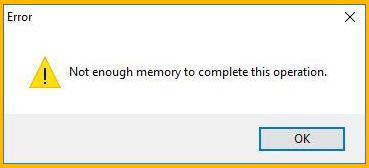
If you have your test running in 32bit version of LabVIEW and 32-bit version of TestStand, and especially if your application is dealing with image processing algorithms, then there are numerous chances you end-up with a Not Enough Memory dialog from LabVIEW as below. There are some creative way and some workaround way to fix this memory issue. Not enough memory dialog from LabVIEW. 1. Unload option Find out the step which consumes most memory and change the Unload Option for that step in TestStand properties. I prefer Unload after step executes. This option would unload that step from the memory and thereby releasing any data stored in that module. Ensure if this module deals with any references, which upon closing, other modules might get affected. Choosing Unload after step…
Read More